Generating Sample Computations ⚡⚡⚡⚡
April 8, 2021
⚡ A quick guide on how to set up your sample computations. ⚡
The computations manager is the fastest way to generate sample computations for your Real Estate Projects. Gone are the days when you have to produce sample payment reports for each of your property development.
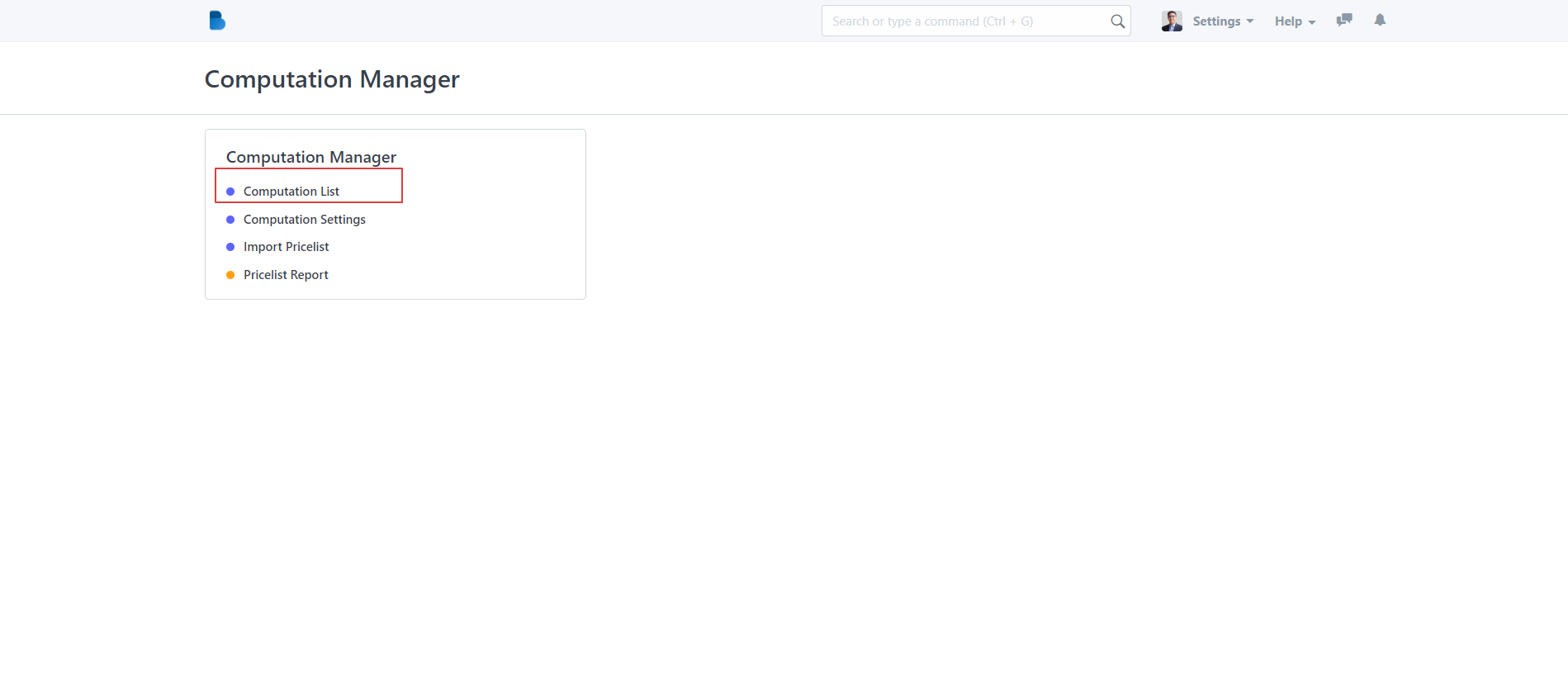
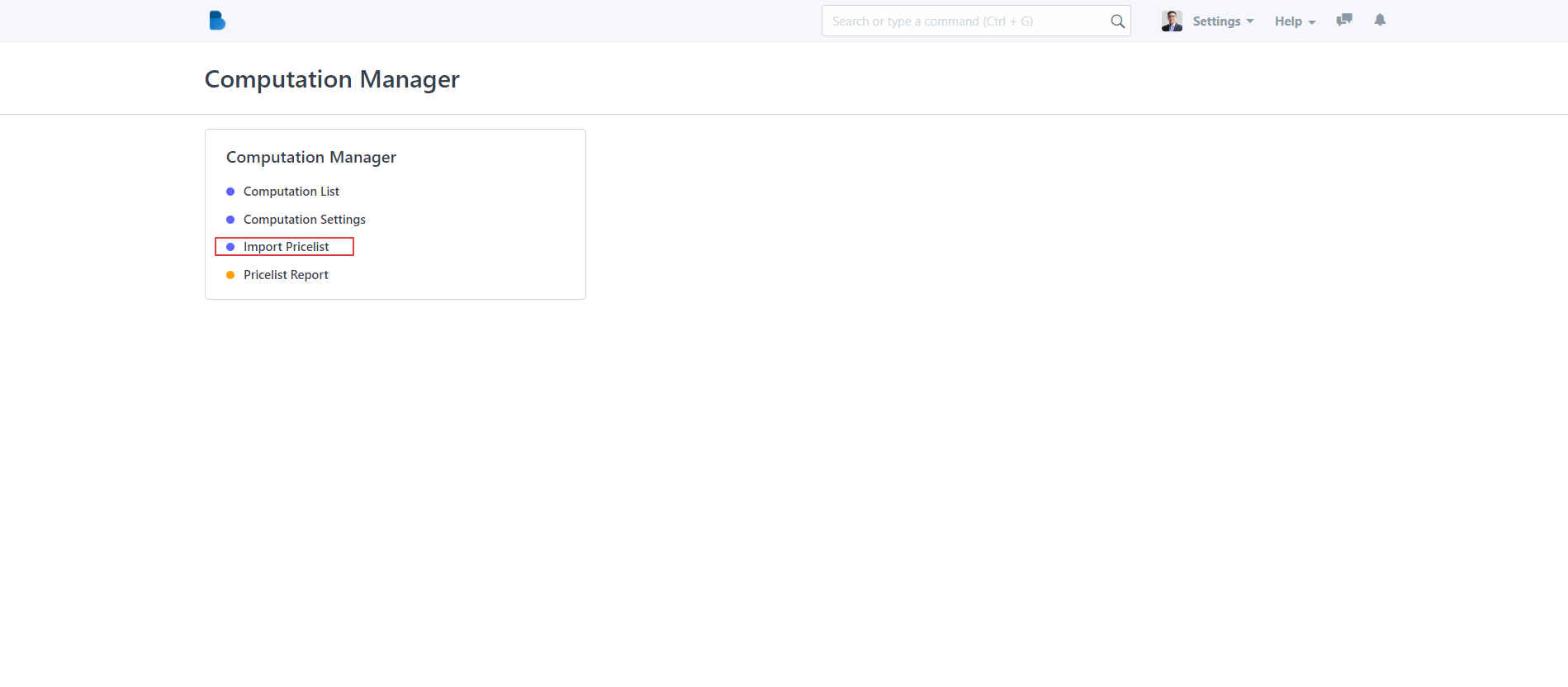
Step 1: Log-in to you account and directly go over to the computations manager and click the module.
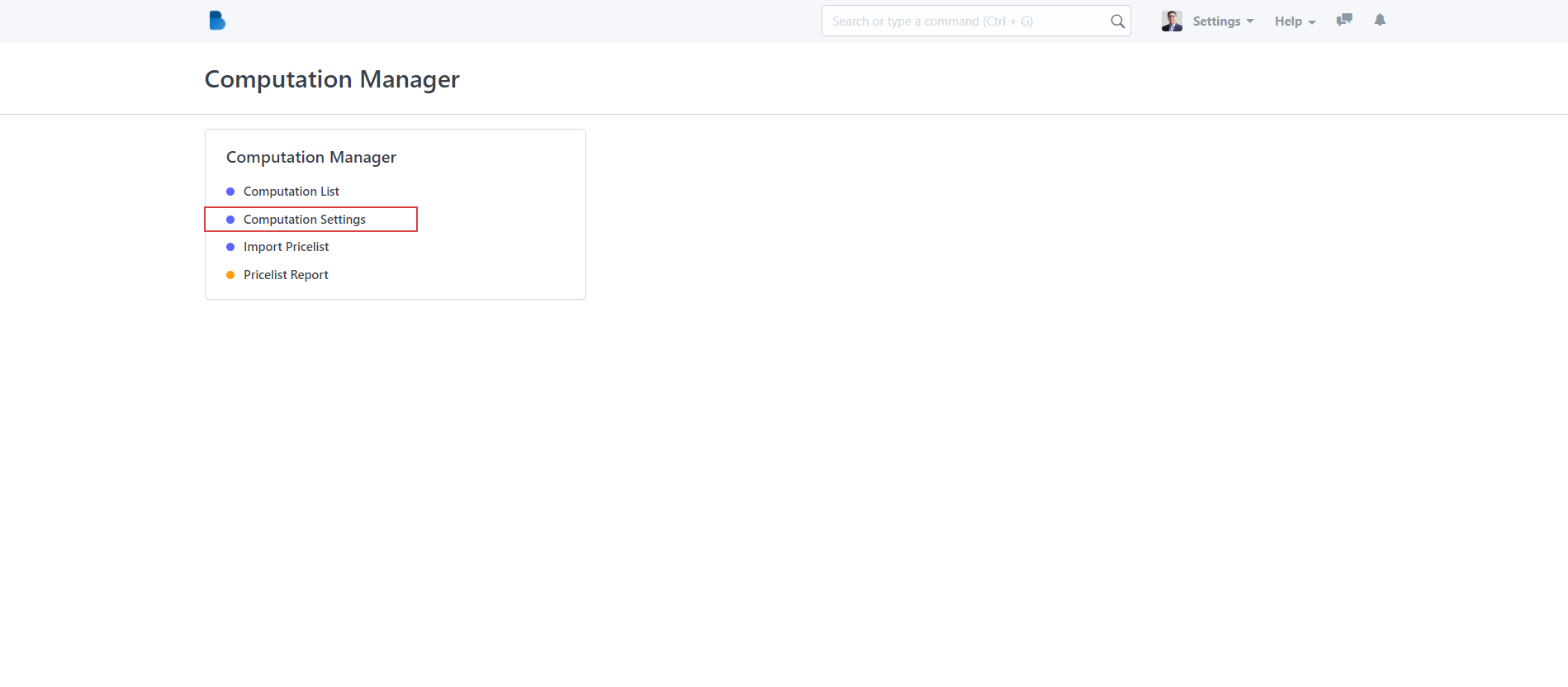
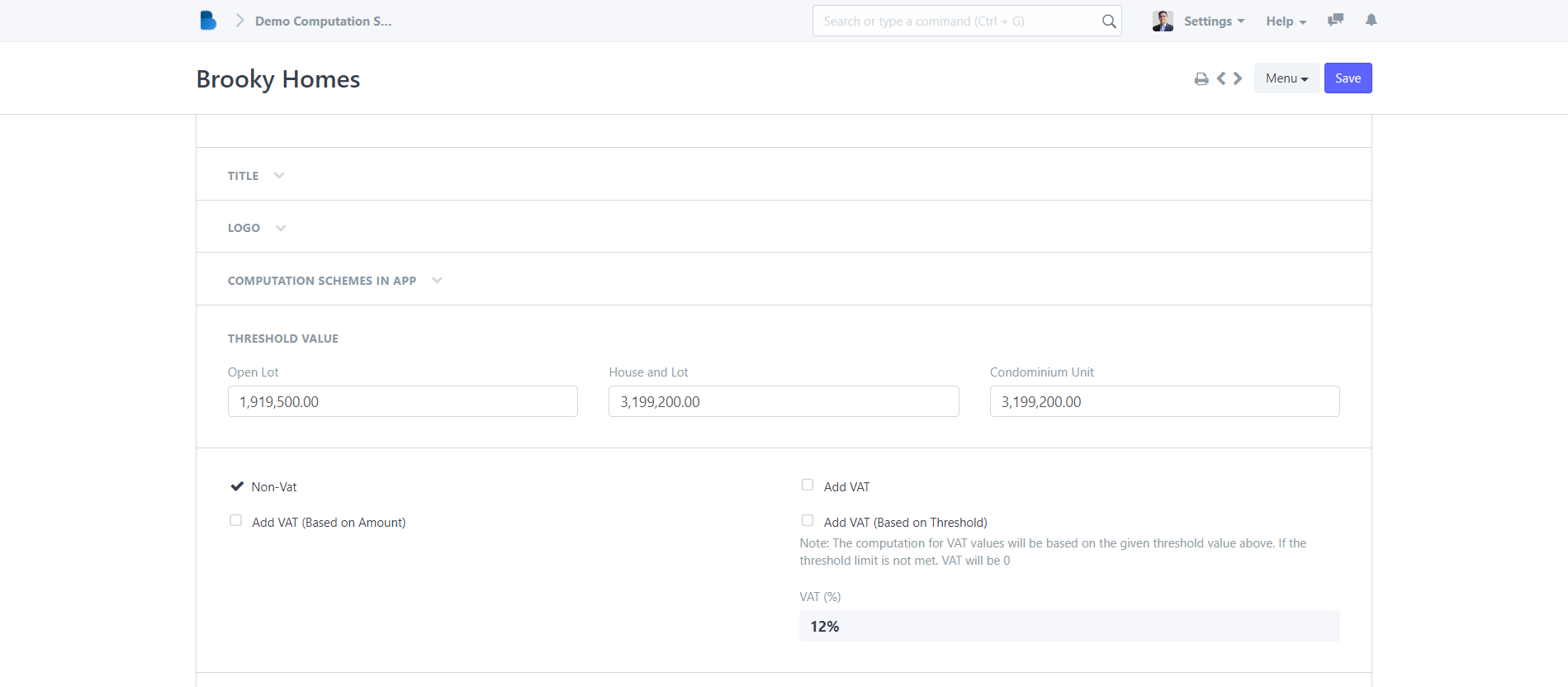
Step 2: Next is to set up your computation settings - This is where you can set up your parameters, schemes, discounts, and interest rates of your various payment schemes.
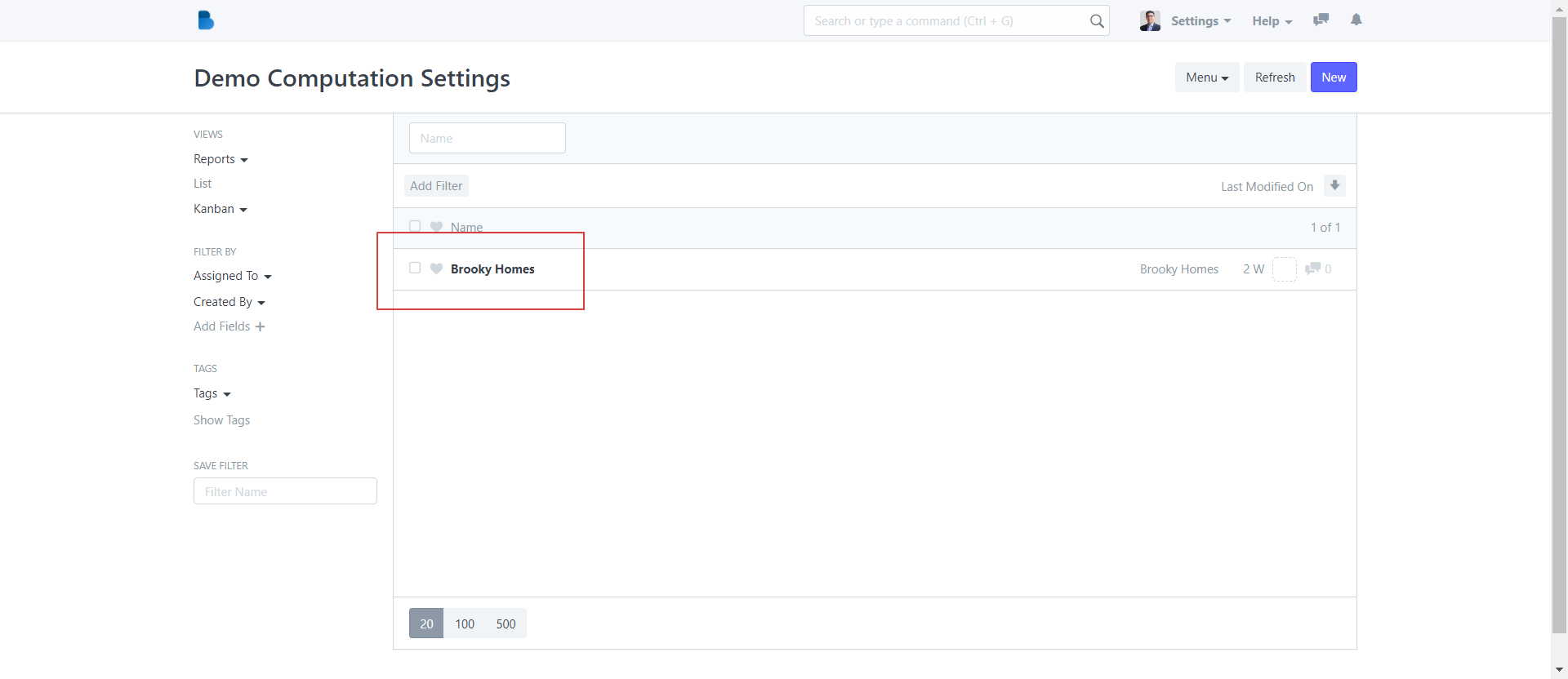
- Select the Project that you want to update, edit, review, and click save.
Step 3: Download a copy of our Pricelist template by going over to the import pricelist page. Download template that you want to upload by clicking the related template on the upper right corner of your page.
There are 2 Templates to choose from, one is for your Horizontal Projects (House and lot), another one is if you have Vertical Projects (Condominium). In this example, we will choose the horizontal template for our pricelist.
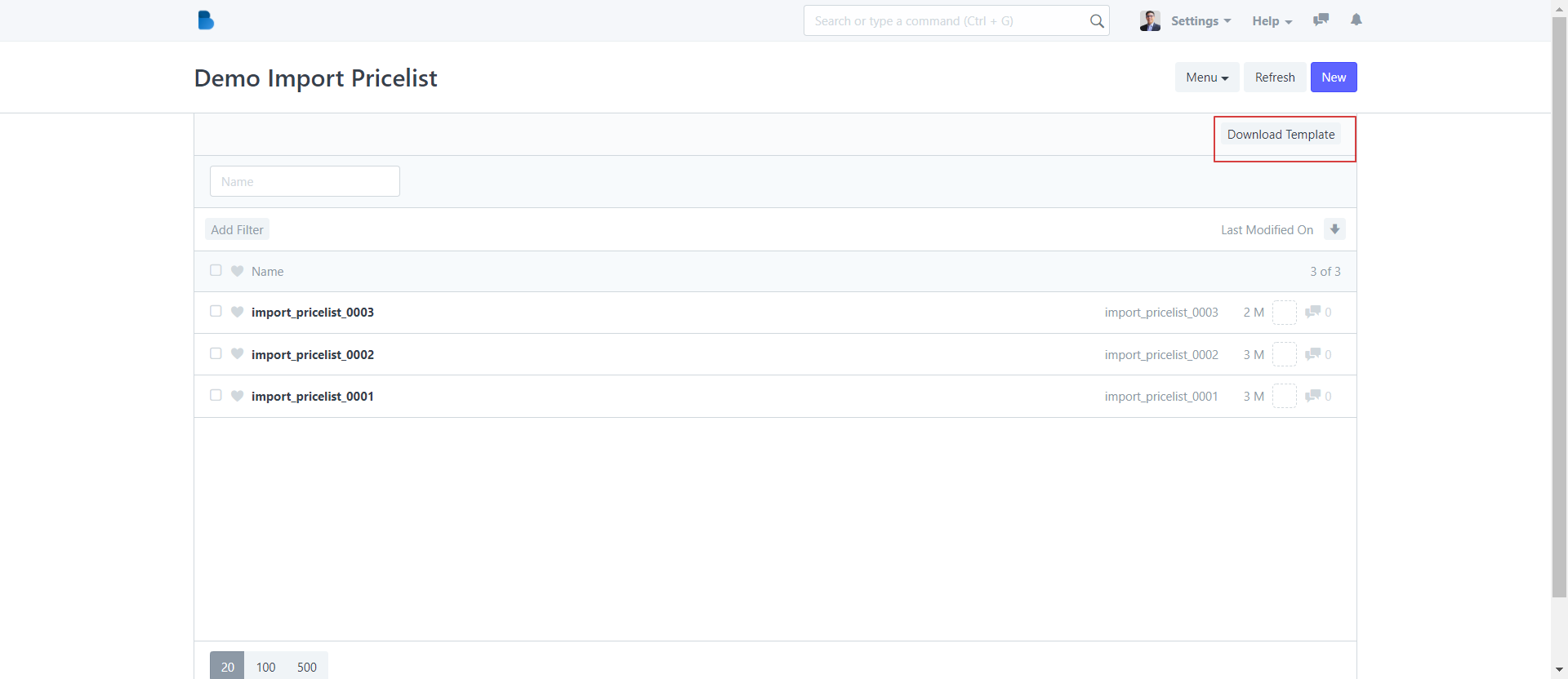
Step 4: Open your copy of the pricelist template, and update it with the updated information, status, pricing, and payment schemes.
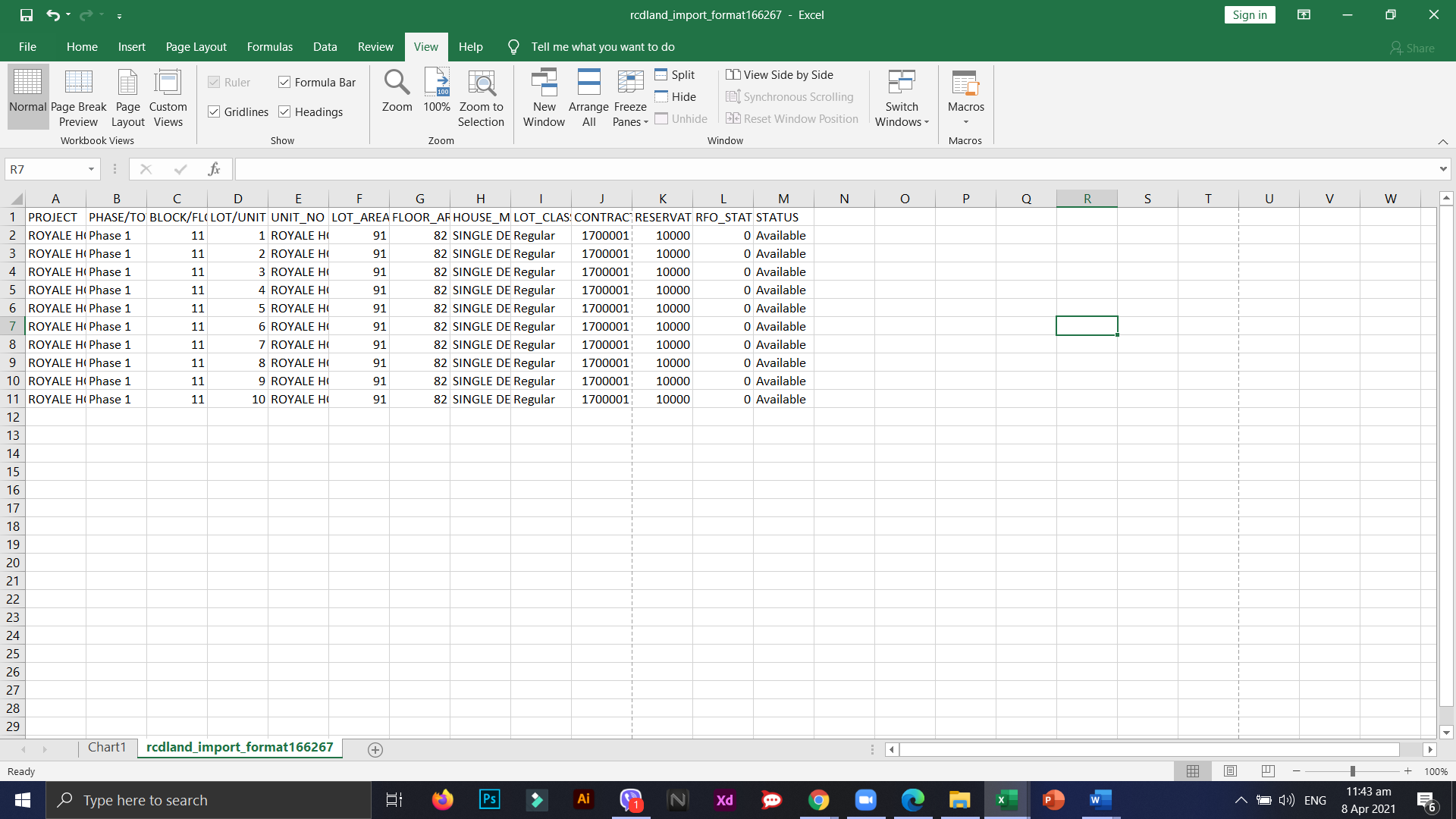
- Once you're done, don't forget to save your CSV template!
Step 5: Go back to your Brooky web app dashboard and head over to your computations manager. Click Import pricelist and Create a new upload by clicking the ( NEW ) button on the upper right side of the navigation menu.
- In the new import pricelist page, click the ATTACH button and browse to the location of your pricelist template. Click your file, and then click UPLOAD.
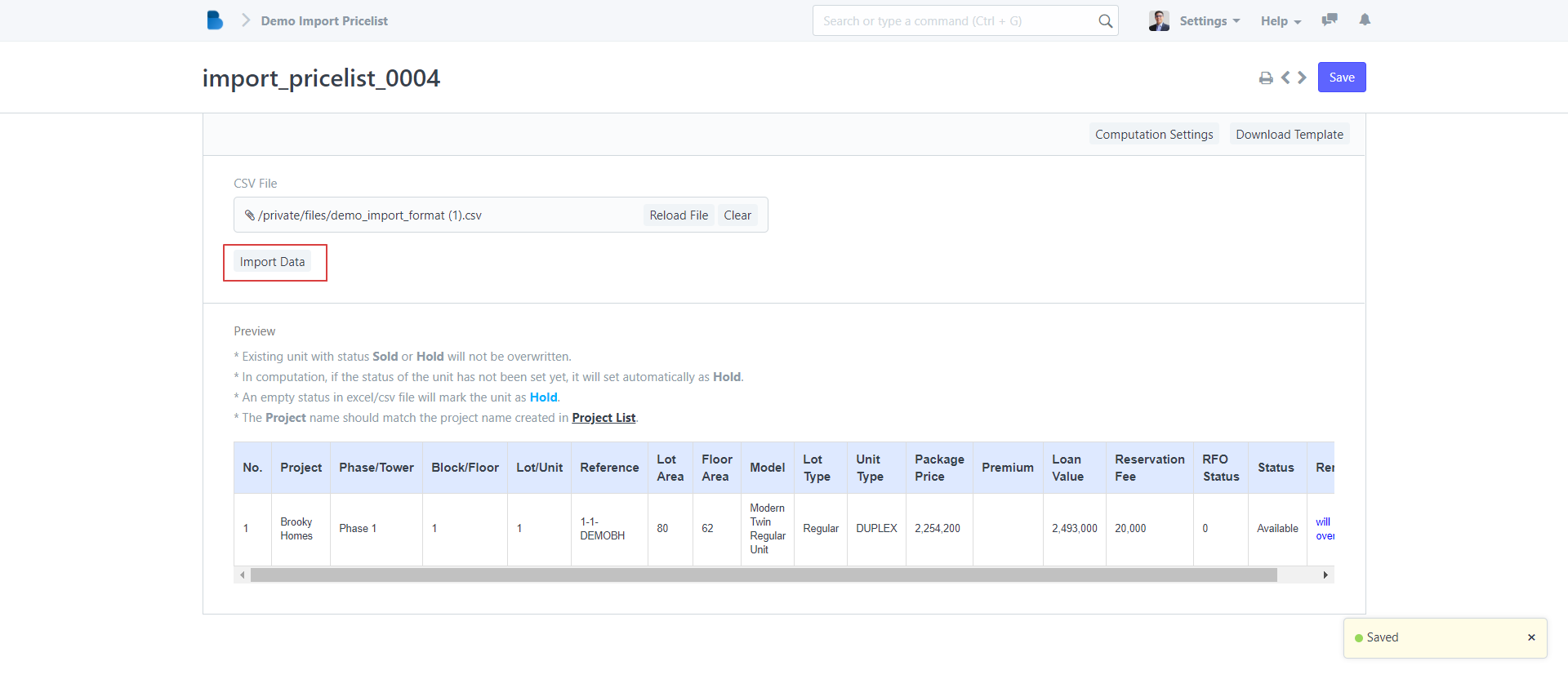
- After you uploaded your pricelist, it will automatically generate a summary of data that is in the template. Here you can double check your data for errors, typos, or missing data.
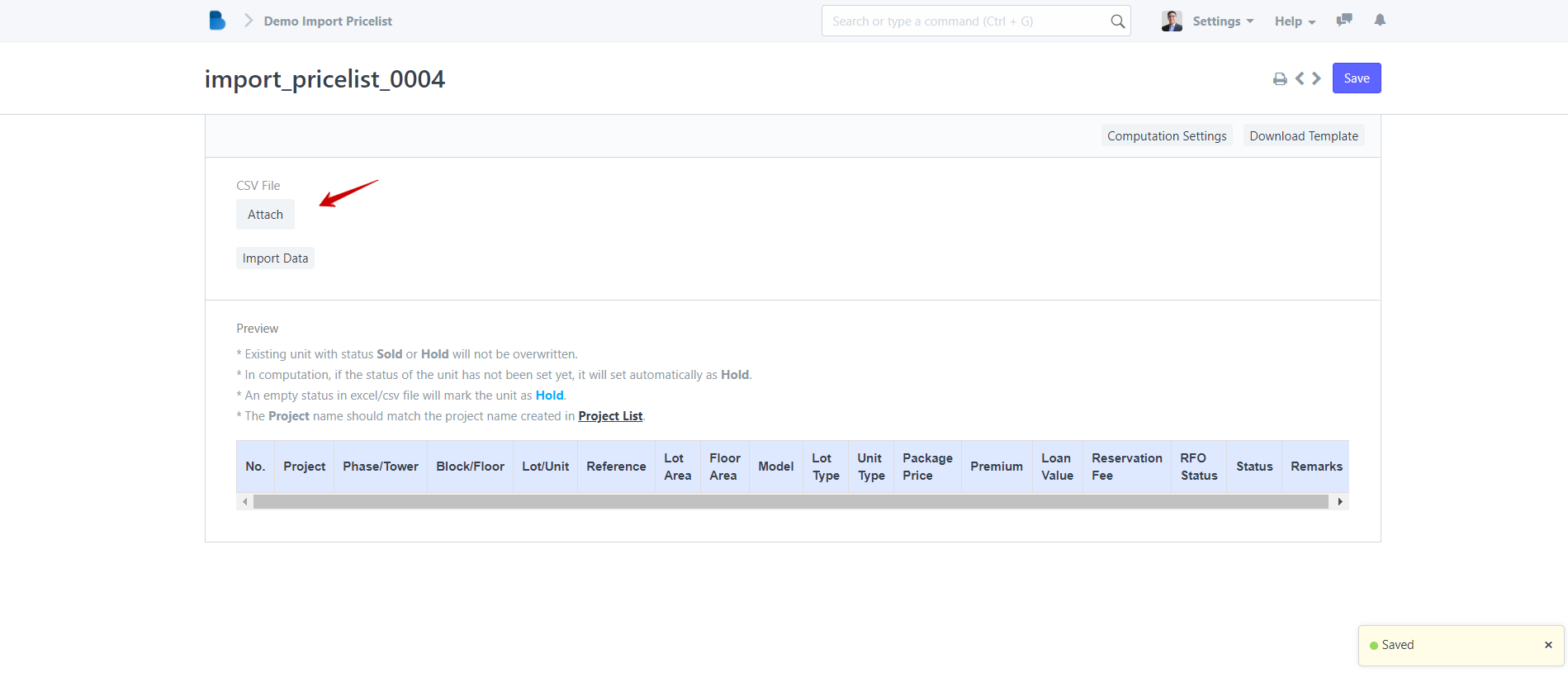
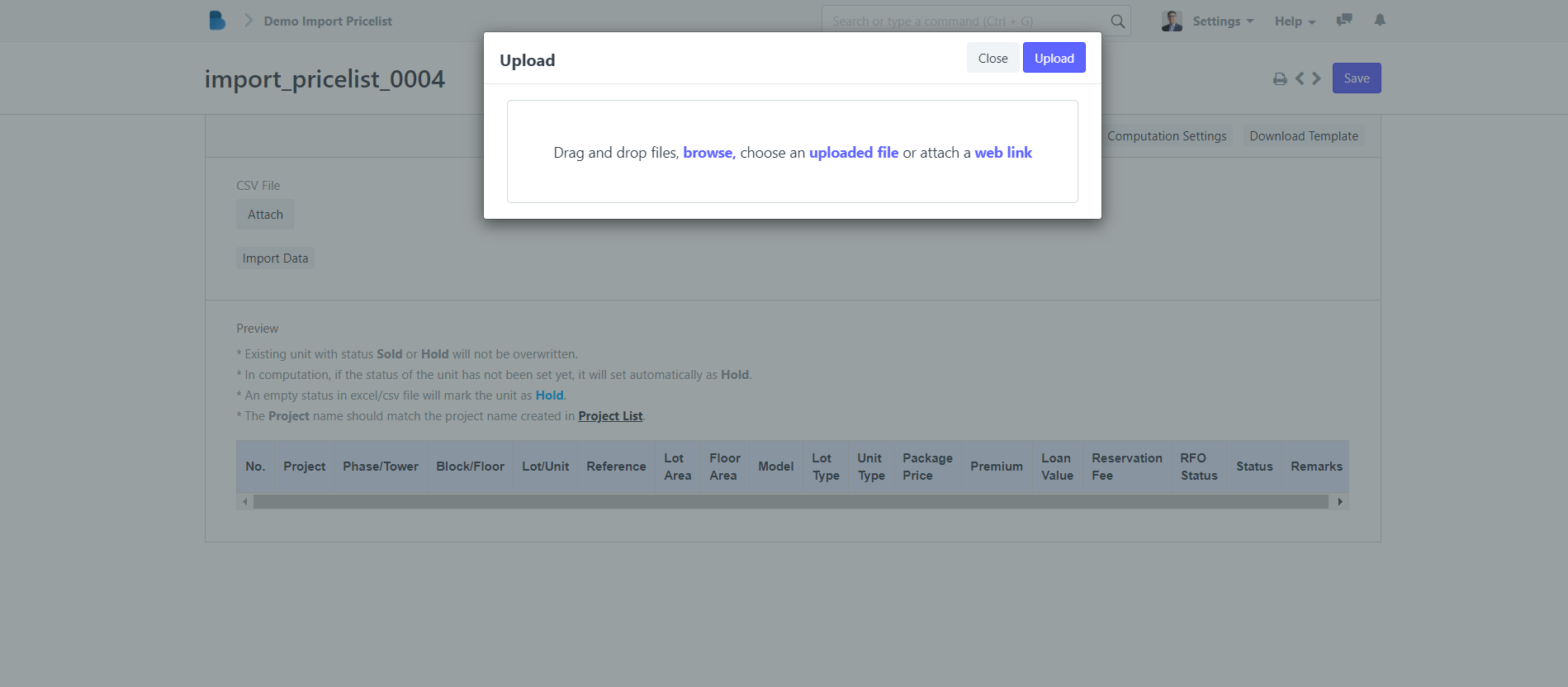
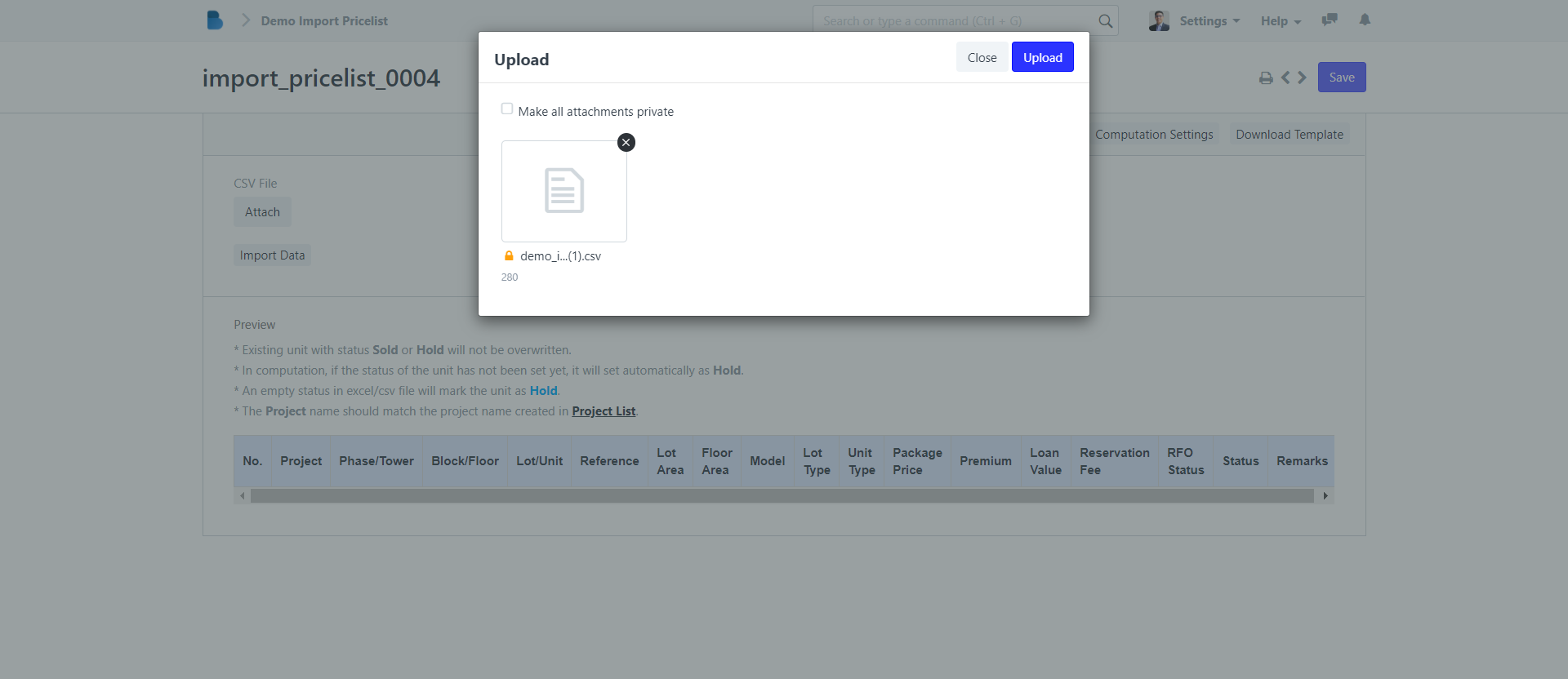
In case you want to edit your template, just clear your uploaded file, update the csv template, save it , and re-upload it again.
- If you all things are correct, then click the IMPORT DATA button on the upper left to import the file.
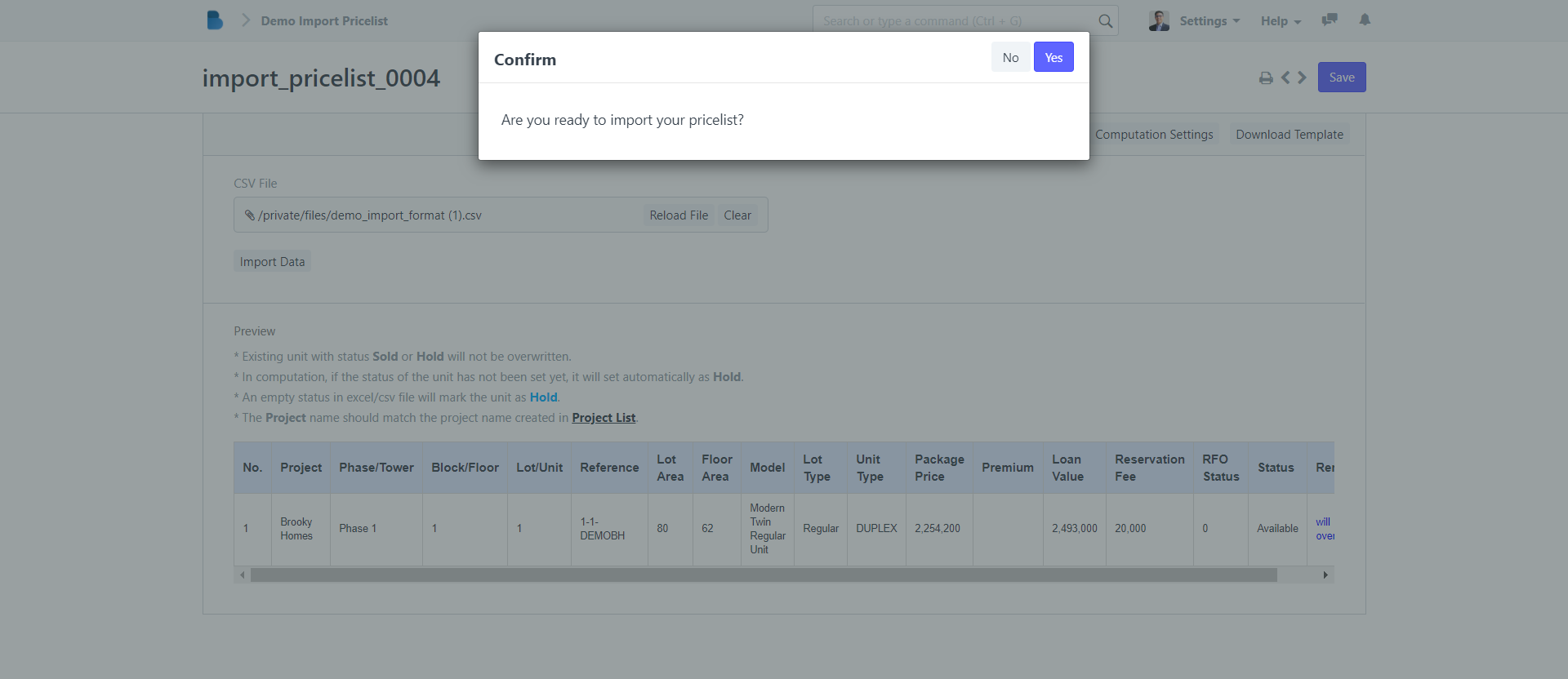
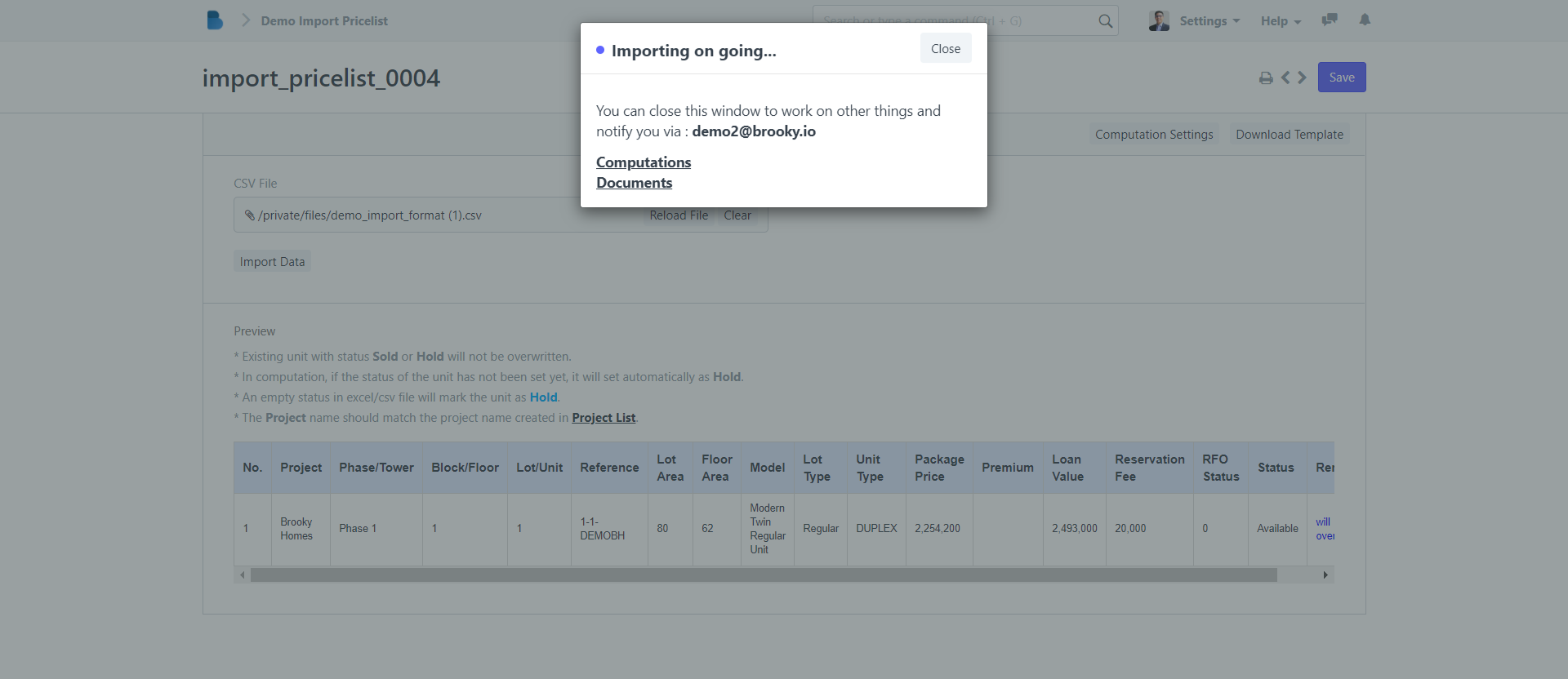
During importing, an individual sample computation is being created for each unit or property for you.

How awesome is that!
To view your sample computations, head over to your computations module, click Computation, and a list of all your uploaded computations will appear.
Here you will see the latest computations and status of your property.
- In the computation list, you can filter your choices by typing on the search fields on the navigation bar.
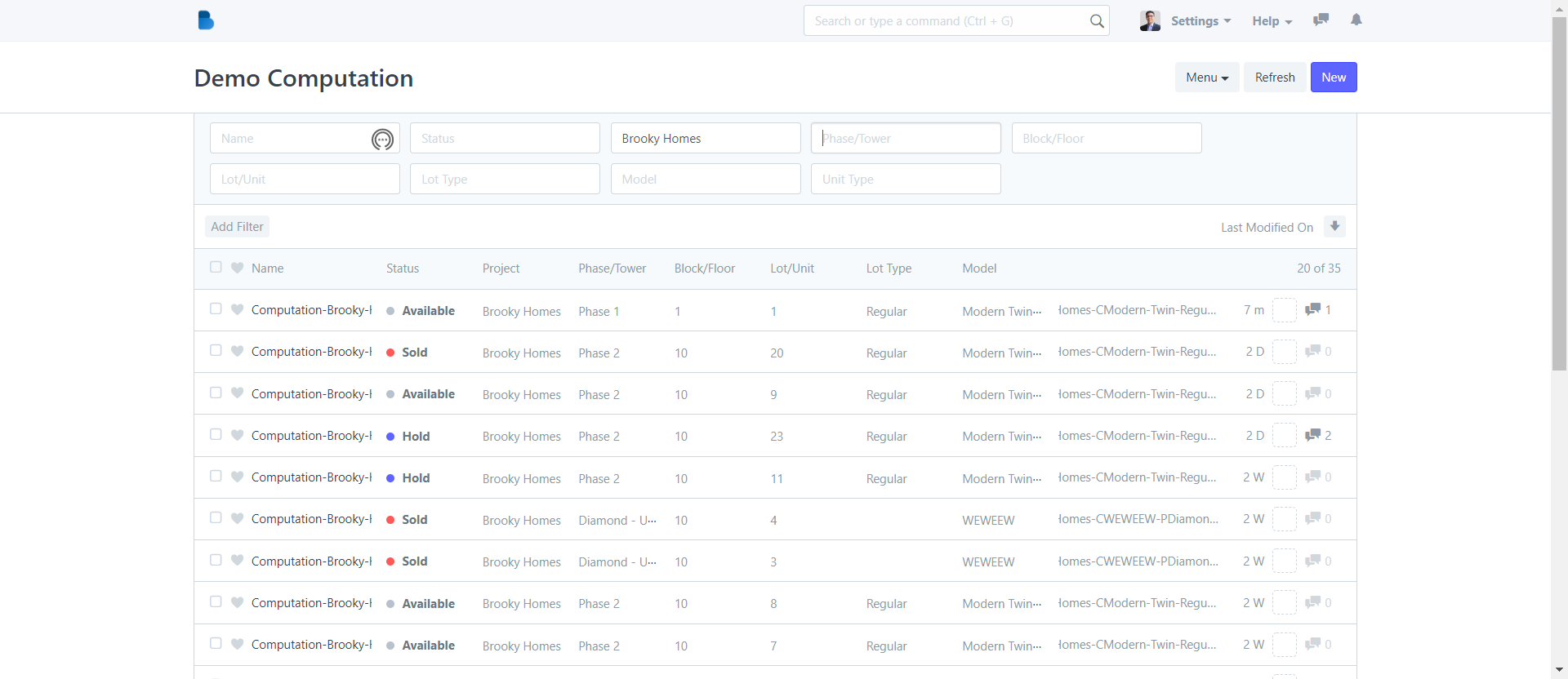
Now you have a Sample computation for each property accessible by your sellers through the Brooky Mobile app
No comments yet. Start a new discussion.